
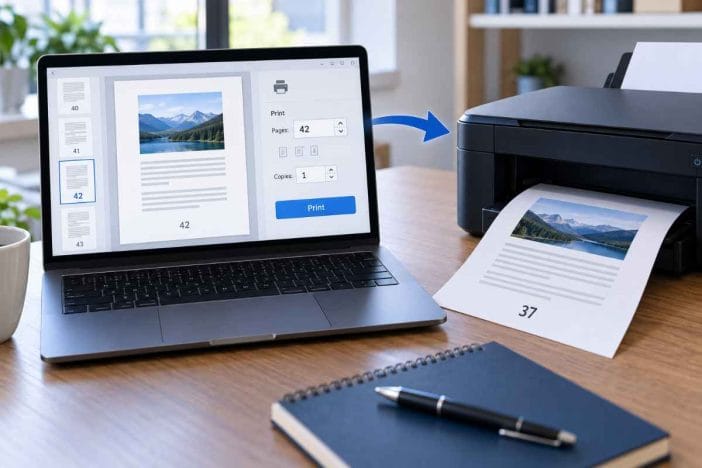
You type 42 into Microsoft Word’s Pages box, check the printer, and click Print.
The printer starts normally.
Then page 37 comes out.
Or perhaps Word prints the entire document even though you asked for just two pages. In another document, Print Current Page works, while entering the same visible page number manually does not.
That behavior feels like a printer problem, but it often is not.
Microsoft Word has several ways of identifying a page. A document can contain physical pages, formatted page numbers, sections, restarted numbering, cover pages, Roman-numeral front matter, and different page layouts. In a complex document, the number printed in the footer may not uniquely identify the sheet Word needs to send to the printer.
The quickest solution is therefore not to reinstall everything.
Start by finding out where the wrong page is being introduced.
If you work with long documents, office files, and productivity workflows regularly, this troubleshooting approach fits the broader system covered in Summase.org’s Technology for Productivity & Decision Efficiency hub: isolate the problem first, then change only the component that is actually failing.
Quick Answer: What to Do First
If Word prints the wrong page, try this before changing any printer settings:
- Click anywhere on the page you actually want.
- Go to File > Print.
- Choose Print Current Page.
- Check the print preview.
- Print one copy.
If that prints the correct page, your printer is probably capable of printing the document correctly. The problem is more likely related to how Word is interpreting your requested page number, page range, or section.
If Print Current Page also produces the wrong content, continue with the diagnostic steps below.
Why Microsoft Word Can Print a Different Page
The confusing part is that “page 5” does not always mean the fifth physical page in the file.
Imagine a report structured like this:
- cover page with no visible page number;
- acknowledgments numbered i–iii;
- table of contents numbered iv–vi;
- main report restarting at page 1;
- appendix restarting at page 1 again.
That document may contain more than one page labeled 1, 2, 3, and so on.
Word supports separate page-number formats and restarted numbering across sections. This is useful for professional reports, theses, books, contracts, manuals, and other long documents, but it also means a plain page number may not always identify a unique location.
That is why section-aware printing matters.
Diagnose the Problem Before Trying Random Fixes
Use this quick interpretation:
| What happens | What it suggests |
|---|---|
| Print Current Page works | Page-number or section interpretation is likely involved |
| Print preview already shows the wrong content | Investigate the document, section, layout, or page numbering |
| Preview is correct but paper output is wrong | Investigate the print queue, driver, or printer |
| Another Word file prints correctly | The original document may be the problem |
| Other apps print correctly but Word does not | Investigate Word/Office or that document |
| Print to PDF is correct but physical printing is wrong | Printer pipeline or driver deserves closer attention |
| Word prints the whole document instead of a range | Check sections and page-range syntax |
This distinction can save a surprising amount of time.
Instead of reinstalling Word, deleting sections, resetting the printer, and changing paper settings all at once, test one layer at a time.
Fix 1: Use Print Current Page
For a single page, this is often the safest workaround.
Open the document and click somewhere on the exact page you want.
Then go to:
File > Print
Under Settings, change Print All Pages to:
Print Current Page
Check the preview before pressing Print.
This bypasses much of the ambiguity involved in manually entering a formatted page number.
When this fix is especially useful
Use Print Current Page when:
- you need only one page immediately;
- the document has multiple sections;
- page numbering restarts;
- the first pages use Roman numerals;
- a cover page is unnumbered;
- you do not yet know which section contains the page.
If this works, do not start changing printer drivers yet. First investigate the document’s page numbering.
Fix 2: Find the Page Number and Section Number
In a multi-section Word document, knowing only the visible page number may not be enough.
Word can identify a page using both a page number and a section number.
For example:
p14s2
means:
page 14 in section 2
To make section information easier to see in desktop Word, right-click the status bar at the bottom of the Word window and enable useful indicators such as:
- Section
- Formatted Page Number
Then click the page you want to print.
You may discover that what looked like simply “page 14” is actually:
Page 14 — Section 3
That information makes custom printing much more precise.
Fix 3: Use Word’s p#s# Syntax for Multi-Section Documents
This is one of the most useful Word printing techniques for long documents.
When a simple page number does not work, specify both the page and section.
Print one page
To print page 14 in section 2:
p14s2
Print a range inside one section
To print pages 5 through 10 in section 3:
p5s3-p10s3
Print pages across different sections
To print from page 5 of section 2 through page 3 of section 5:
p5s2-p3s5
Print an entire section
To print section 4:
s4
Print separate pages from different sections
For example:
p1s1,p2s2,p7s4
This syntax is particularly useful when page numbers restart at 1 in later parts of the document.
A normal range such as:
1-3
can become ambiguous when several sections contain pages numbered 1 through 3.
A section-aware range tells Word exactly which pages you mean.
Fix 4: Check for Section Breaks and Restarted Page Numbers
If p#s# fixes the problem, the next question is why the document contains multiple sections.
That does not mean the sections are wrong.
Sections are often intentional.
They allow Word to apply different formatting to different parts of one document, including:
- different headers and footers;
- different page-number formats;
- portrait and landscape pages;
- different margins;
- columns;
- restarted page numbering;
- different first-page behavior.
To reveal section breaks, go to:
Home > Show/Hide 
You may see entries such as:
Section Break (Next Page)
Section Break (Continuous)
Section Break (Odd Page)
Section Break (Even Page)
Do not delete section breaks just to solve printing
Deleting a section break can change formatting in ways that are much more difficult to repair than the original printing problem.
A section break may control:
- chapter numbering;
- page orientation;
- headers;
- footers;
- page numbering;
- margins.
If your only objective is to print the correct page, using Print Current Page or the correct p#s# range is usually safer than restructuring the document.
Fix 5: Check Whether Page Numbering Restarts
A document can look perfectly normal while using several numbering systems.
For example:
Section 1:
i, ii, iii, iv
Section 2:
1, 2, 3, 4...
Section 3:
1, 2, 3, 4...
The same formatted number can therefore appear more than once.
To inspect numbering, open the relevant header or footer and examine the page-number settings.
If the section is configured to Start at 1 rather than continue from the previous section, repeated page numbers are expected.
That design is common in:
- books;
- dissertations;
- formal reports;
- policy manuals;
- appendices;
- multi-part proposals.
It becomes a printing issue only when Word cannot infer which occurrence you meant from a simple range.
Fix 6: Use Print Preview as a Diagnostic Tool
Do not treat Print Preview as a cosmetic step.
It can tell you where the problem begins.
Open:
File > Print
Then inspect the page being prepared for output.
If the preview is already wrong
Focus on Word and the document.
Possible areas to inspect include:
- page numbering;
- section breaks;
- layout;
- page size;
- orientation;
- fields;
- hidden content;
- complex document formatting.
If the preview is correct but the printed sheet is wrong
Move your attention farther down the printing pipeline:
- print queue;
- Windows Print Spooler;
- printer driver;
- printer configuration;
- printer firmware or vendor software.
That distinction is more useful than assuming every printing error is caused by the printer.
Fix 7: Print to PDF to Separate a Word Problem From a Printer Problem
A useful diagnostic test is to send the same page to a PDF output instead of the physical printer.
In Windows, choose an available PDF printer such as Microsoft Print to PDF, then use the same page or page range.
Open the resulting PDF and inspect it.
If the PDF contains the wrong page
The problem is likely occurring before the physical printer becomes involved.
Investigate:
- Word’s page interpretation;
- sections;
- numbering;
- document formatting;
- possible document corruption.
If the PDF is correct but the printer outputs the wrong page
The physical printing path deserves more attention.
Check:
- the print queue;
- spooler;
- printer driver;
- device-specific print settings.
This A/B test is far more informative than immediately reinstalling everything.
It also follows the same principle Summase.org uses when evaluating technology workflows: isolate one variable before changing the system. You can see that methodology in How We Test Productivity Tools: Method, Criteria & Bias Controls.
Fix 8: Clear the Print Queue and Restart the Print Spooler
Sometimes the page coming out of the printer is not the page from your newest print command.
It may be an older job still waiting in the queue.
This is especially easy to misdiagnose after:
- the printer ran out of paper;
- the printer went offline;
- a print job stalled;
- several copies were submitted;
- the computer or printer lost its connection.
Check the print queue
In Windows 11, go to:
Settings > Bluetooth & devices > Printers & scanners
Choose the printer and open its print queue.
Cancel jobs you no longer want.
Then try printing a single page again.
Restart the Print Spooler if jobs remain stuck
Press:
Windows + R
Enter:
services.msc
Press Enter.
Find:
Print Spooler
Right-click it and choose:
Restart
The spooler is the Windows service that manages print jobs. Restarting it can clear temporary problems between applications and printers.
Do not begin with this step if Word’s own preview is already showing the wrong page. In that situation, the error is occurring earlier.
Fix 9: Test the Driver, Word, and the Document Separately
If the previous steps do not isolate the issue, test each layer independently.
Test another application
Try printing a simple page from another application.
If other applications print normally but Word does not, focus on Word or the document.
Test another Word document
Create a new blank Word file with several simple pages.
Try printing one specific page.
If the new file works but the original document fails, the original document deserves closer inspection.
Test another printer if available
If a second printer produces the correct output, the first printer or its driver becomes more suspect.
Update or reinstall the printer driver
Use the correct driver for your printer model and operating system.
A damaged or incompatible driver can cause application-specific printing problems.
Repair Microsoft 365 or Office
If Word continues to behave incorrectly across multiple documents and printers, repair the Office installation.
On current Windows systems, this is typically available through the installed-app settings for Microsoft 365 or Office.
Start with Quick Repair.
If the problem remains, Online Repair is the more extensive option.
What If Word Prints the Entire Document Instead of Selected Pages?
This is a closely related symptom.
Suppose you enter:
2-4
but Word prints far more than pages 2 through 4.
Before blaming the printer, check whether those page numbers occur in multiple sections.
A document may contain:
- page 2 in section 1;
- page 2 in section 2;
- page 2 in section 3.
For a precise range, specify the section:
p2s2-p4s2
If your document is simple and has only one continuously numbered section, an ordinary range such as 2-4 should normally be sufficient.
What If Word Shows the Right Page Number but the Content Is Different?
This is a more advanced case.
A document can repaginate when Word prepares it for printing, particularly when layout-dependent elements change.
Possible contributors include:
- fields updating before print;
- printer-specific metrics;
- fonts;
- hidden text;
- tables;
- floating objects;
- tracked changes;
- different paper sizes;
- document damage.
If the page number in the footer appears correct but the body content unexpectedly shifts, do not assume the page-number syntax is the only issue.
Try this sequence:
- Save the document.
- Close and reopen Word.
- Check the print preview.
- Save a new copy of the document.
- Test the same content in a PDF.
- Test a new Word document.
- Repair Office if multiple documents are affected.
For a critical document, keep an untouched backup before making structural changes.
Check Page Size and Orientation
A mismatch between Word’s layout and the printer’s paper settings usually causes layout or scaling problems rather than a completely unrelated page number.
But it still matters.
Check:
Layout > Size
and:
Layout > Orientation
Then compare those settings with your printer properties.
A document may also contain one landscape section in the middle of otherwise portrait pages. That alone is a clue that section breaks are present.
Special Case: Cover Pages
Cover pages can complicate the relationship between:
- the physical first sheet;
- the first numbered page;
- the first page in a section.
If entering 1 does not print the cover you expect, use Print Current Page first.
Then inspect the section and formatted page-number information rather than guessing which numeric value Word is using.
Special Case: Mail Merge Documents
Mail Merge documents deserve separate attention because records can be structured through sections in ways that make ordinary page ranges less intuitive.
If a merged document refuses to print the expected records or pages:
- check the section structure;
- test a very small print range;
- try Print Current Page;
- inspect section numbers;
- consider generating a final merged document before printing.
Do not assume that “record 10” and “physical page 10” are necessarily the same thing.
Special Case: Book Fold and Booklet Layouts
Booklet-style documents can behave differently because Word must impose pages onto sheets for folding.
A physical sheet can contain multiple logical pages.
If a specific page range behaves unexpectedly in a Book fold document, make a copy before experimenting with layout settings and test the output using PDF preview.
The distinction between a page and a printed sheet becomes particularly important here.
What About Microsoft Word for Mac?
The same basic diagnostic logic applies:
- preview before printing;
- test the current page;
- inspect page ranges;
- check sections;
- test another file;
- compare PDF output with physical output.
However, the macOS print dialog differs from the Windows interface, so menu names and printer controls may not match the Windows steps exactly.
If you are using Word for Mac, follow the Mac-specific print dialog rather than trying to reproduce every Windows menu literally.
A Reliable Troubleshooting Order
When Word prints the wrong page, use this order:
1. Print Current Page
If it works, investigate numbering and sections.
2. Check Print Preview
Determine whether Word itself is already targeting the wrong content.
3. Check Section and Formatted Page Number
Identify the page precisely.
4. Use p#s#
Specify both page and section where necessary.
5. Reveal Section Breaks
Understand the document structure without deleting anything.
6. Print to PDF
Separate document/Word behavior from the physical printer.
7. Clear the Print Queue
Make sure an old job is not being printed.
8. Restart Print Spooler
Reset the Windows print-job service if necessary.
9. Test the driver, another document, and Office
Escalate only after simpler causes have been ruled out.
This order minimizes unnecessary changes.
What Not to Do First
Do not immediately delete section breaks
You may destroy page numbering, headers, orientation, or document layout.
Do not repeatedly press Print
You may simply add more unwanted jobs to the queue.
Do not reinstall the printer before checking Print Preview
If the preview is already wrong, reinstalling the printer may solve nothing.
Do not change five settings at once
If the problem disappears, you will not know what fixed it.
Do not assume the visible page number equals the physical page position
In structured Word documents, those can be different concepts.
Example: You Want Page 14 but Word Prints Another Page
Suppose you have a professional report containing:
- an unnumbered cover;
- four pages of front matter;
- a main section that restarts at page 1;
- an appendix that also restarts at page 1.
You click a page displaying 14.
Typing:
14
does not produce the expected sheet.
You check the status bar and discover that the page is in:
Section 3
You then enter:
p14s3
into the custom Pages field.
Now Word has both pieces of information it needs:
page 14 + section 3
That is far more precise than simply entering 14.
Is the Printer Broken?
Not necessarily.
A printer deserves more suspicion when:
- a Windows test page fails;
- several applications print incorrectly;
- the printer goes offline repeatedly;
- print jobs stall;
- the device reports hardware errors;
- output is physically damaged, blank, streaked, or incomplete.
If Word alone selects the wrong page while the printer otherwise operates normally, start with the document and Word’s print logic.
FAQ
Why does Word print a different page than the one I selected?
One common reason is that the document contains multiple sections or restarted page numbering. The visible page number may therefore not uniquely identify the page Word needs to print.
How do I print exactly the page I am looking at in Word?
Click somewhere on that page, go to File > Print, and choose Print Current Page.
What does p14s2 mean in Microsoft Word?
It means page 14 of section 2.
p represents the page number and s represents the section number.
How do I print pages 5 through 10 in section 3?
Enter:
p5s3-p10s3
in the Pages field.
How do I print an entire Word section?
You can specify the section, for example:
s4
for section 4.
Why does Word print the entire document instead of my page range?
If the document contains several sections—especially sections with restarted numbering—a simple range may not identify the intended pages precisely. Try a section-aware range such as p2s3-p5s3.
Should I remove section breaks to fix printing?
Usually not as a first step. Section breaks may control page numbering, headers, footers, orientation, margins, and other layout settings.
How can I tell whether Word or my printer is causing the problem?
Compare Word’s Print Preview and a PDF output with the physical print. If the PDF is correct but the printer is wrong, investigate the printing pipeline. If the PDF is also wrong, focus more closely on Word and the document.
Can a stuck print queue make it look like Word printed the wrong page?
Yes. A printer can resume an older pending job after paper, connection, or spooler problems. Check the print queue before submitting repeated print commands.
Does this apply to Microsoft 365?
Yes. The core concepts—Print Current Page, Custom Print, sections, page-number formatting, print preview, and printer troubleshooting—are relevant to current desktop versions of Word.
Final Takeaway
When Word prints the wrong page, the most useful question is not:
“What’s wrong with my printer?”
Ask instead:
“At what point does the page become wrong?”
If Print Preview is wrong, start with Word and the document.
If Print Current Page works but entering a page number does not, inspect section numbers and restarted page numbering.
If PDF output is correct but the physical print is wrong, move downstream to the queue, spooler, driver, and printer.
And if the document contains multiple sections, remember the syntax that solves a surprising number of page-range problems:
p#s#
Diagnose first. Change one thing at a time. That is usually faster—and much safer—than rebuilding a carefully formatted document because one page refused to print correctly.
