
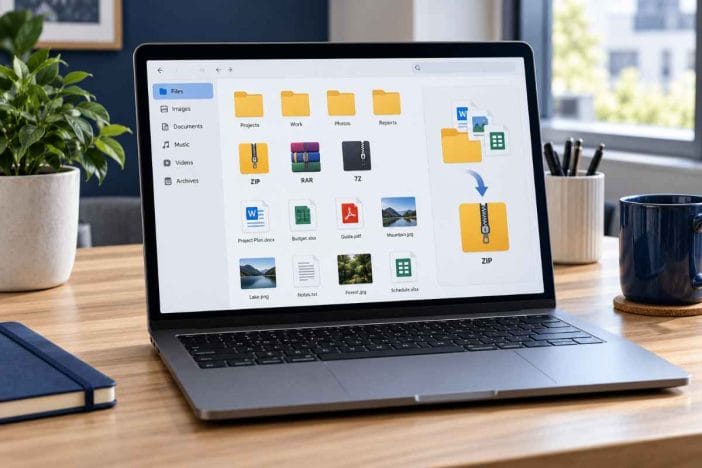
A client sends you a compressed folder containing a PDF contract, several product photographs, and a spreadsheet. You need the PDF now, but the rest of the archive can wait. Installing another application—or extracting every file just to reach one document—adds unnecessary steps to a simple task.
The same problem appears when a project folder needs to be shared. A collection of files may be easier to organize and transfer as one ZIP, especially when the directory structure matters.
Summase Archive Tools is designed around these two everyday operations: creating a ZIP archive and extracting files from an existing archive. It runs in a web browser, supports individual file downloads, and provides a folder-saving option where the browser permits it.
There are boundaries worth understanding. Not every archive format supports the same operations, compression does not guarantee a smaller file, and browser memory limits matter when handling large archives.
Free ZIP and RAR Extractor Online
Use the tool below to compress files into ZIP or open supported ZIP, RAR, and 7Z archives.
For extraction, you can inspect an archive, select the files you need, and download them. Selecting a single file preserves its original file format. Selecting multiple files through the standard download option creates a ZIP containing the selected items.
Summase Archive Tools
Free ZIP Compressor and ZIP, RAR & 7Z Extractor. Work with archives directly in your browser.
Create a ZIP Archive
Drag and drop files here, click this box, or browse your device.
Extract ZIP, RAR or 7Z Files
Drop an archive here or click this box. Password-protected and multipart archives are not supported.
One selected file downloads in its original format. Multiple files download as ZIP, unless you choose Extract to Folder on a supported browser (Chrome, Edge).
How to Extract ZIP, RAR, and 7Z Files Online
The extraction process begins with the archive, not with the individual documents inside it.
- Select Extract Archive in the tool.
- Click Browse Archive and choose a supported ZIP, RAR, or 7Z file.
- Allow the browser to inspect the archive and display its contents.
- Review the filenames before deciding what to extract.
- Click Download beside an individual file to retrieve that file in its original format.
- To retrieve multiple files, select the relevant checkboxes and choose Download Selected.
If you select only invoice.pdf, the intended result is a PDF download, not another ZIP archive.
If you select invoice.pdf, receipt.jpg, and summary.xlsx, the standard multiple-file download packages those three items into a ZIP. You can then open that ZIP using a compatible archive manager or file application.
This distinction matters because extraction and download packaging are separate operations. The files are extracted from the source archive first; when several files need to be delivered through a single browser download, a new ZIP is created for convenience.
Extract files directly into a folder
On compatible browsers, Extract to Folder provides an alternative to downloading another ZIP.
Select the relevant files, click Extract to Folder, choose a destination directory, and grant the requested file access permission.
The browser can then save the extracted files into that directory while retaining their relative folder paths.
This option is particularly useful for archives containing organized projects rather than a handful of documents.
Browser support is not universal. If Extract to Folder is unavailable, use the regular download option instead.
How to Compress Multiple Files or a Folder into ZIP
A ZIP archive brings multiple files into one portable container. It can preserve directory structure, making it useful for handing off a project, archiving reference material, or preparing documents for transfer.
To create a ZIP with Summase Archive Tools:
- Open the Compress Files tab.
- Choose Choose Files for individual items or Choose Folder for an existing directory.
- Check that the selected files appear in the list.
- Enter a useful name for the output archive.
- Select a compression level: Fast, Balanced, or Maximum.
- Click Compress & Download ZIP.
For example, a folder organized like this:
Client-Project/
    Contract.pdf
    Budget.xlsx
    Images/
        Product-01.jpg
        Product-02.jpg
can be packaged into one ZIP while retaining the directory paths represented by the selected files.
The filename you choose should describe the archive's purpose. client-project-documents.zip is more useful months later than files-final-new.zip.
For additional organization, Summase.org's personal knowledge and execution stack guide explains how consistent systems make information easier to retrieve and maintain.
Which compression level should you choose?
The three compression settings are not simply a ranking of quality.
Fast reduces the effort spent compressing the selected files. It may generate a larger ZIP than a higher compression setting.
Balanced offers a practical default for mixed files and everyday document transfers.
Maximum attempts stronger compression but can require additional processing time. It does not guarantee a meaningfully smaller result.
A folder containing plain text, CSV files, and other compressible data may benefit from higher compression. A folder containing JPEG photos, MP4 videos, or previously compressed archives may show little improvement.
For those files, trying Maximum compression can consume additional time without producing a worthwhile reduction.
ZIP vs RAR vs 7Z: What Can This Tool Actually Do?
ZIP, RAR, and 7Z are archive formats. They can contain multiple files and folders, but their compression methods, software support, and available features differ.
Summase Archive Tools does not claim to reproduce every function available in desktop archive managers.
| Operation | ZIP | RAR | 7Z |
|---|---|---|---|
| Open an archive | Supported | Supported when extraction engine is available | Supported when extraction engine is available |
| Inspect file entries | Yes | Compatible archives | Compatible archives |
| Extract individual files | Yes | Compatible archives | Compatible archives |
| Download selected files | Yes | Compatible archives | Compatible archives |
| Create a new archive | Yes | No | No |
| Encrypted archives | Not supported | Not supported | Not supported |
| Multipart archives | Not supported | Not supported | Not supported |
Important: RAR and 7Z extraction rely on a browser-compatible archive engine and WebAssembly resources. These may be blocked or unavailable in some browser and hosting configurations.
The tool creates ZIP files only. It cannot create native RAR or 7Z archives.
If you need to produce a RAR archive, manage multipart volumes, recover damaged archives, or use advanced encryption features, an appropriate desktop archive manager is generally a better choice.
Does Online Extraction Mean Your Files Are Uploaded?
Not necessarily.
Many online file utilities require uploading files to a remote server for processing. That design may be useful for some tasks, but it introduces another destination for the data.
Summase Archive Tools is designed to process selected files locally through browser-based JavaScript and archive-processing components.
Under its intended implementation, the selected archive contents are not uploaded to Summase.org for server-side extraction.
However, local file processing should not be confused with complete anonymity or universal security.
The webpage and supporting libraries still need to load. Browser extensions, compromised devices, malicious scripts, or an improperly configured website can affect privacy and security. Sensitive documents deserve extra caution regardless of which archive tool is used.
For confidential business or regulated documents, consider using a trusted offline application, especially when your organization has specific data-handling requirements.
More broadly, effective file management is part of the Technology for Productivity & Decision Efficiency hub, where software decisions are considered alongside operational consistency and information risk.
The Archive Handling Checklist: Five Checks Before You Download
A successful extraction message is not enough to prove that every file is safe, complete, and usable.
Use this practical verification framework whenever an archive contains documents that matter.
1. Confirm the source
Was the archive sent by someone you expected to hear from?
A filename that looks like an invoice, delivery notice, or business document does not prove that its contents are trustworthy.
If the archive arrives unexpectedly, verify the sender through a known communication channel before opening any extracted files.
2. Check the file types
Review the extensions of the files you intend to extract.
A file named invoice.pdf and one named invoice.pdf.exe are not equivalent. Some operating systems hide extensions by default, which can make suspicious filenames more convincing.
Treat unexpected executable files, scripts, and unfamiliar shortcuts cautiously.
3. Verify the extracted contents
After extraction, confirm that important files actually open.
For a ZIP containing a PDF, spreadsheet, and photographs, check that the PDF pages display correctly, the spreadsheet contains its expected worksheets, and the images are readable.
Do not rely solely on the archive's filename or the number of entries listed.
4. Compare the expected folder structure
A project delivered with separate folders for documents, assets, and reports should retain an understandable structure after extraction.
If the source archive contains nested folders, the standard browser download and direct folder-saving options may behave differently. Choose the method that preserves the organization you need.
5. Keep a recoverable original
For important records, retain the original archive until you have verified the extracted files.
Extraction is not the same as backup. A second copy stored on the same failing device is not a comprehensive recovery strategy.
This checklist supports the wider principle discussed in Summase.org's guide to evaluating productivity tools: usefulness should be assessed through real workflows, reliability, and long-term costs—not feature counts alone.
When ZIP Compression Saves Space—and When It Does Not
Consider two folders, each containing 100 MB of files.
The first folder holds text documents and CSV exports. The second contains already-compressed photographs and videos.
Both folders can be packaged into ZIP files. But the first may compress substantially, while the second may remain close to its original size.
This is because compression opportunities depend on the data, not merely the output extension.
A ZIP file is also useful when it does not save much storage. Combining many files into one archive can simplify sharing and preserve their directory structure.
The practical question is therefore:
Are you trying to reduce file size, or are you trying to simplify file handling?
If your goal is organization, a ZIP can be useful even with minimal size reduction.
If your goal is meeting a strict upload limit, verify the finished ZIP size before sending it. Maximum compression is not a reliable substitute for reducing source file sizes.
Browser-Based Extraction vs Desktop Archive Software
| Consideration | Summase Archive Tools | Desktop archive manager |
|---|---|---|
| Installation | No desktop installation required | Typically installed |
| Basic ZIP creation | Available | Usually available |
| Basic ZIP extraction | Available | Usually available |
| RAR/7Z extraction | Dependent on browser engine | Depends on selected application |
| Large archives | Limited by browser memory and tool restrictions | Often better suited |
| Password-protected archives | Not supported in this version | Often supported |
| Offline use | Not reliably supported by this webpage | Usually possible |
| Advanced recovery | Not available | Application-dependent |
A browser tool is a reasonable choice for occasional, relatively small archive tasks when its format support matches your needs.
For large archives, recurring technical work, complex file permissions, encrypted records, or recovery operations, desktop software may be more appropriate.
The choice should follow the task rather than the assumption that one type of application is universally better.
File Size Limits and Browser Compatibility
Summase Archive Tools includes application-level safety limits to reduce the risk of excessive memory use.
The current implementation is designed around:
| Limit | Configured value |
|---|---|
| Maximum input | 200 MB |
| Maximum extracted output | 300 MB |
| Maximum individual extracted file | 150 MB |
| Maximum number of files | 500 |
These values are configured safeguards, not guaranteed processing capacities.
Actual performance depends on device memory, browser behavior, the archive's compression ratio, and the amount of intermediate data required.
A comparatively small compressed archive can expand into a much larger amount of data. That makes highly compressed or unexpectedly large archives unsuitable for casual browser processing.
The folder picker also depends on browser support and user permission. For the current compatibility requirements, see MDN's documentation for the browser directory picker.
Why an Archive May Fail to Open or Extract
If an operation fails, start with the actual error rather than repeatedly uploading or selecting the same file.
The archive is password-protected
The current tool does not support encrypted ZIP, RAR, or 7Z archives.
A password-protected archive may require a compatible desktop utility.
The archive is damaged or incomplete
Interrupted downloads, missing multipart volumes, or corrupt archive structures can prevent extraction.
Download the original again from a trustworthy source, and confirm that any required parts are present.
The file exceeds the tool's limits
An archive may be smaller than the input limit but expand beyond the maximum allowed extraction size.
If the archive is trustworthy and genuinely requires more resources, use software designed for larger workloads rather than repeatedly attempting extraction in a memory-constrained browser.
The browser cannot load the archive engine
ZIP processing and RAR/7Z processing do not use exactly the same browser components.
If ordinary ZIP files work but RAR or 7Z archives fail, the browser may be unable to load the additional extraction engine or one of its WebAssembly resources.
Try a compatible, updated browser. If the issue persists, the archive may require desktop software.
The downloaded file does not open
First verify whether the original archived file was damaged.
Next, check the downloaded file size and extension. Avoid renaming an arbitrary file extension simply to make another application attempt to open it.
For developers implementing similar browser utilities, Summase.org also provides an HTML Symbols and Unicode Codes reference to help distinguish literal characters from encoded HTML representations when building web interfaces.
Frequently Asked Questions
Can I extract a RAR file online without installing WinRAR?
Summase Archive Tools can extract compatible RAR archives when its browser-based archive engine loads successfully. Select the archive, inspect its entries, and download the files you need. Encrypted, multipart, damaged, or otherwise unsupported archives may require a dedicated desktop application.
Why are multiple extracted files downloaded as ZIP?
A standard browser download normally saves one downloadable item at a time. Packaging multiple selected files into a ZIP allows the tool to deliver them together while retaining their relative paths. On compatible browsers, Extract to Folder provides an alternative without ZIP repackaging.
Can I compress a folder without uploading it to a server?
Yes, the tool is designed to read selected files locally and create a ZIP within the browser. Folder selection depends on browser capabilities and permission. The files are not intended to be transferred to Summase.org for server-side compression.
Can an online ZIP compressor make every file smaller?
No. Compression results depend on the file contents. Plain text and some structured documents often compress well, while JPEG photographs, videos, and previously compressed archives may shrink very little. Check the final ZIP size rather than assuming Maximum compression will provide the smallest useful file.
Choose the Right Archive Workflow
You do not need a full desktop archive manager for every small file task. Sometimes you only need a document from an archive, a folder packaged for delivery, or a way to inspect files before deciding what to download.
This ZIP and RAR extractor online is intended for those everyday situations, with browser-based ZIP creation, compatible archive extraction, and individual file downloads.
Use it for supported file formats within the stated limits, verify the output when accuracy matters, and choose a trusted desktop application when the archive requires encryption, recovery, or heavier processing.
For other practical utilities, explore the Summase.org Free Online Tools library.
What Online Tool Do You Need?
Help Summase.org create useful free online tools. Share your ideas!
Support Summase.org Your voluntary support helps us keep creating free tools and useful articles. Tap to see how to support
Your contribution helps maintain this website, develop new online tools, and publish useful articles for a wider audience.
Contributions are entirely optional. All free tools and articles remain accessible to everyone.